Everything you need to meet, connect and present
Sphere Meet is the professional part of Sphere Messenger: video meetings, topic-based networking and web conferences, with translated subtitles without leaving your chat.
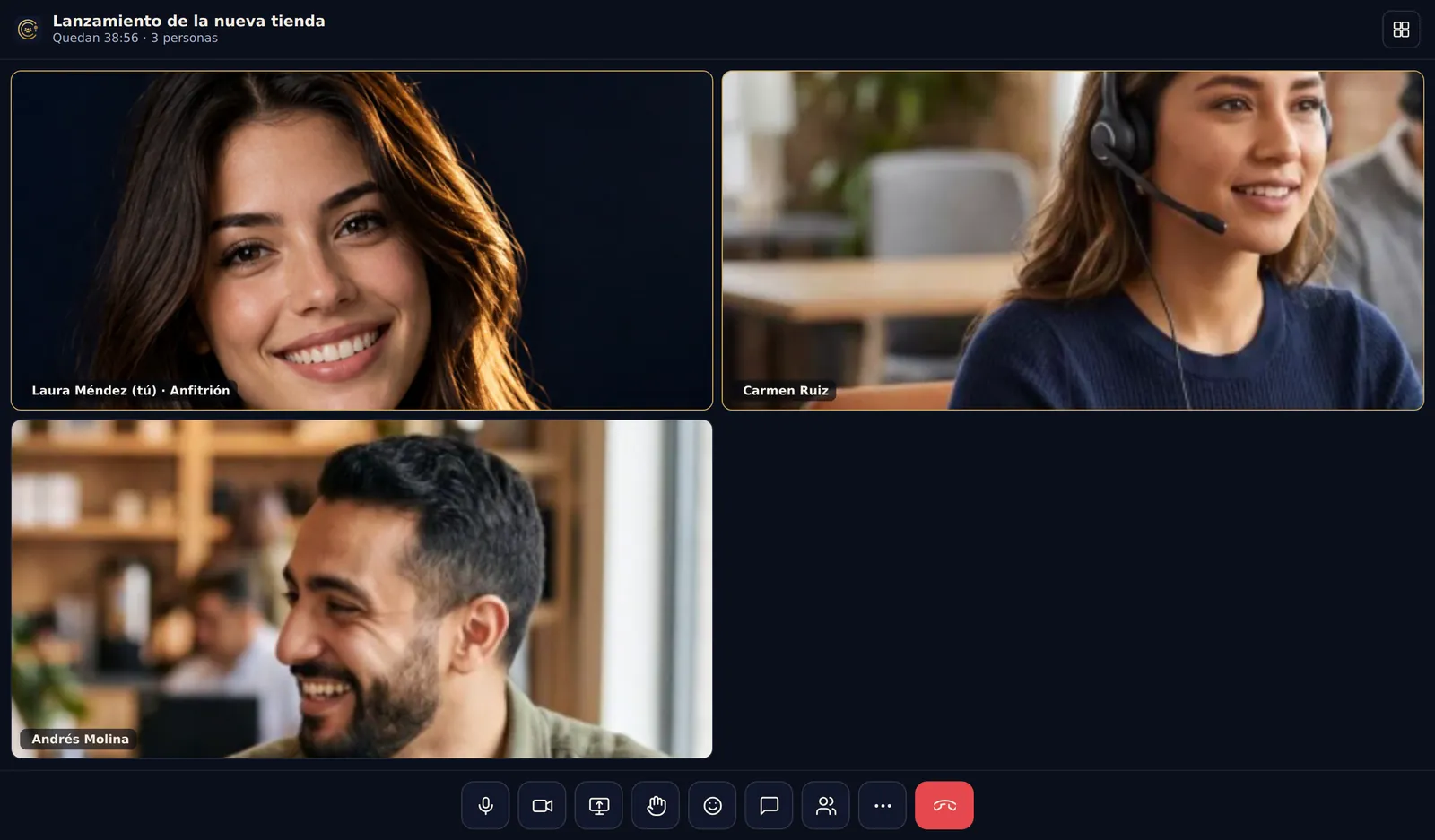
What is Sphere Meet
Meetings with link
Create a meeting in seconds and share it with a link or code.
Networking by topics
Fixed rooms by sector, country or interest and quick 1 to 1 video rounds.
Web conferences
Up to 6 speakers and 500 audience members, who join from the browser without installing anything.
In your language
Translated subtitles in each person's language and AI-generated summary when finished.
Where it is
In the «Meetings» tab on the bottom bar of Sphere Messenger. Works on iPhone, Android, in your computer browser (Windows, Mac, or Linux) and as an installable application on Windows from Edge or Chrome.
Button map
Each number in the screenshot corresponds to an explanation in the list.

Meetings home screen
- 1Meetings | CallsSwitch between your Meet meetings and call history.
- 2New meetingCreate a meeting right now and it takes you to the waiting room to enter and share the link.
- 3ScheduleChoose date, time, and time zone; you receive a reminder and can add it to your calendar.
- 4Networking RoomCreate a fixed room on a topic; people follow it and join whenever they want.
- 5ConferenceTalk with stage and audience (paid plans).
- 6Code and «Join»Paste a code or meeting link and press «Join».
- 7Your plan and «Your Statistics»What your plan allows and your meeting figures.
- 8«How does it work?»Open the step-by-step videos.
- 9UpcomingYour scheduled and ongoing meetings, with who has accepted the invitation.
- 10Link and «Enter»Copy the link to share it or enter the meeting.
- 11Upcoming eventsConferences and events with date, with their price if they have entry.
- 12«Meetings» tabAlways at the bottom bar of Sphere Messenger.

Inside the meeting
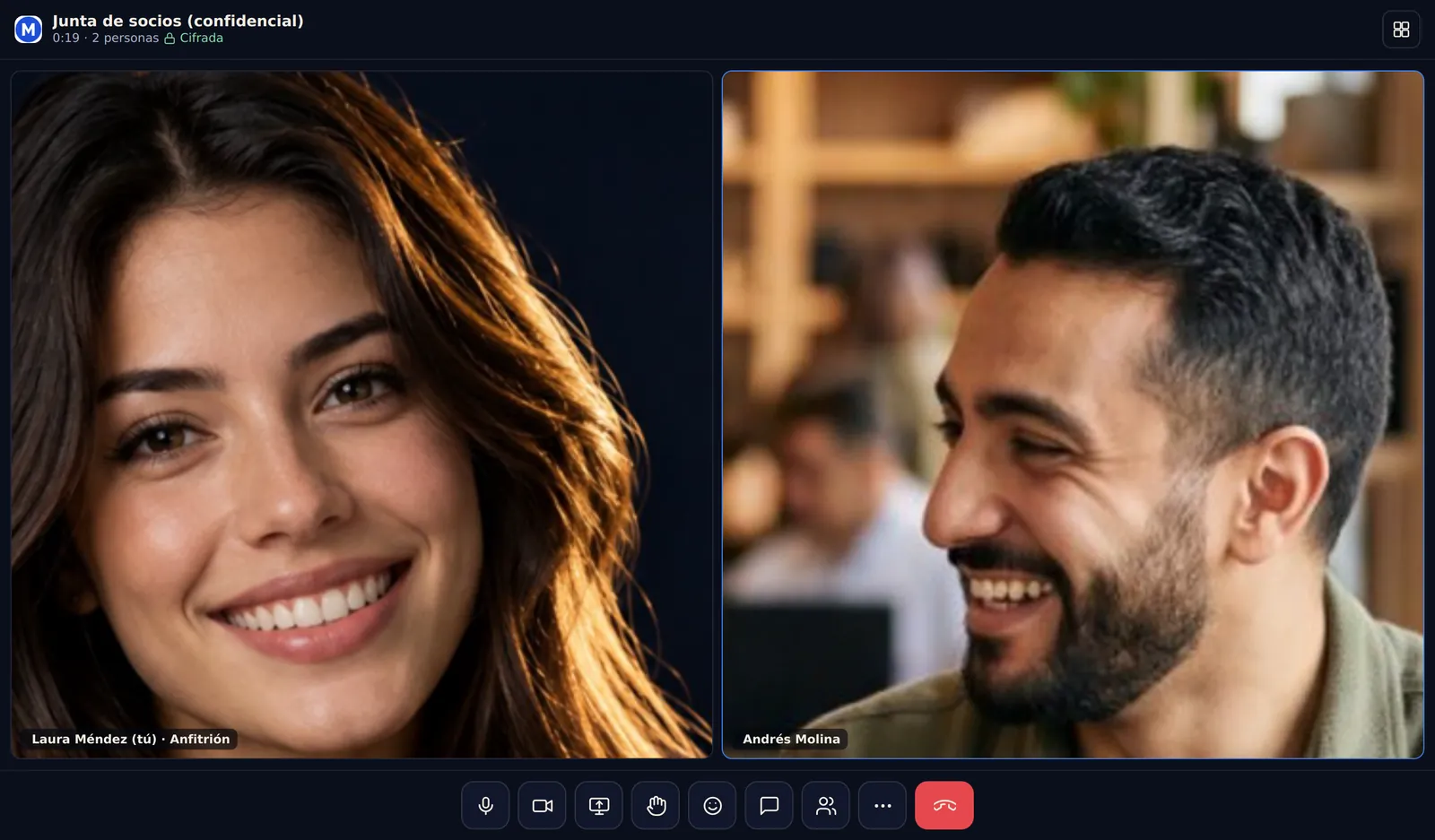
- 1«‹ Messenger»Return to chat without leaving the meeting; the meeting continues in a floating window.
- 2Title and timeMeeting name, remaining time in the free plan and number of people.
- 3ViewSwitch between grid and speaker view.
- 4MicrophoneMute or unmute your microphone.
- 5CameraTurn your camera on or off.
- 6Share screenShow your screen to others (from your computer).
- 7Raise handRequest your turn to speak; in a conference, request to go on stage.
- 8ReactionsSend an emoji that everyone sees.
- 9«CC» SubtitlesEnable captions translated to your language.
- 10ChatMeeting messages and files.
- 11ParticipantsWho is inside and who is waiting; the host admits, mutes, or removes.
- 12«⋯ More»All extra meeting tools.
- 13Hang upYou leave the meeting; the host can also end it for everyone.
What's in «⋯ More»
- Copy the link and share it
- Invite people from Sphere
- Floating window
- Polls and questions
- Quick 1-on-1 rounds and small groups
- Shared whiteboard
- Record the meeting
- Stream to YouTube
- Blur the background
- Enable or remove the waiting room
- AI transcription and summary
- Pin a live product
All screenshots are from a demo account with fictional people.
Step by step
Create a meeting and share it
- Tap «New meeting».
- In the waiting room, test your camera and microphone and tap «Enter».
- Share the link with «Copy link» or invite from «⋯ More».
▶ Watch the video

Schedule a meeting
- Tap «Schedule».
- Enter the title, date, time, and time zone.
- Create the meeting: you'll receive a reminder 10 minutes before and can add it to your calendar.
▶ Watch the video

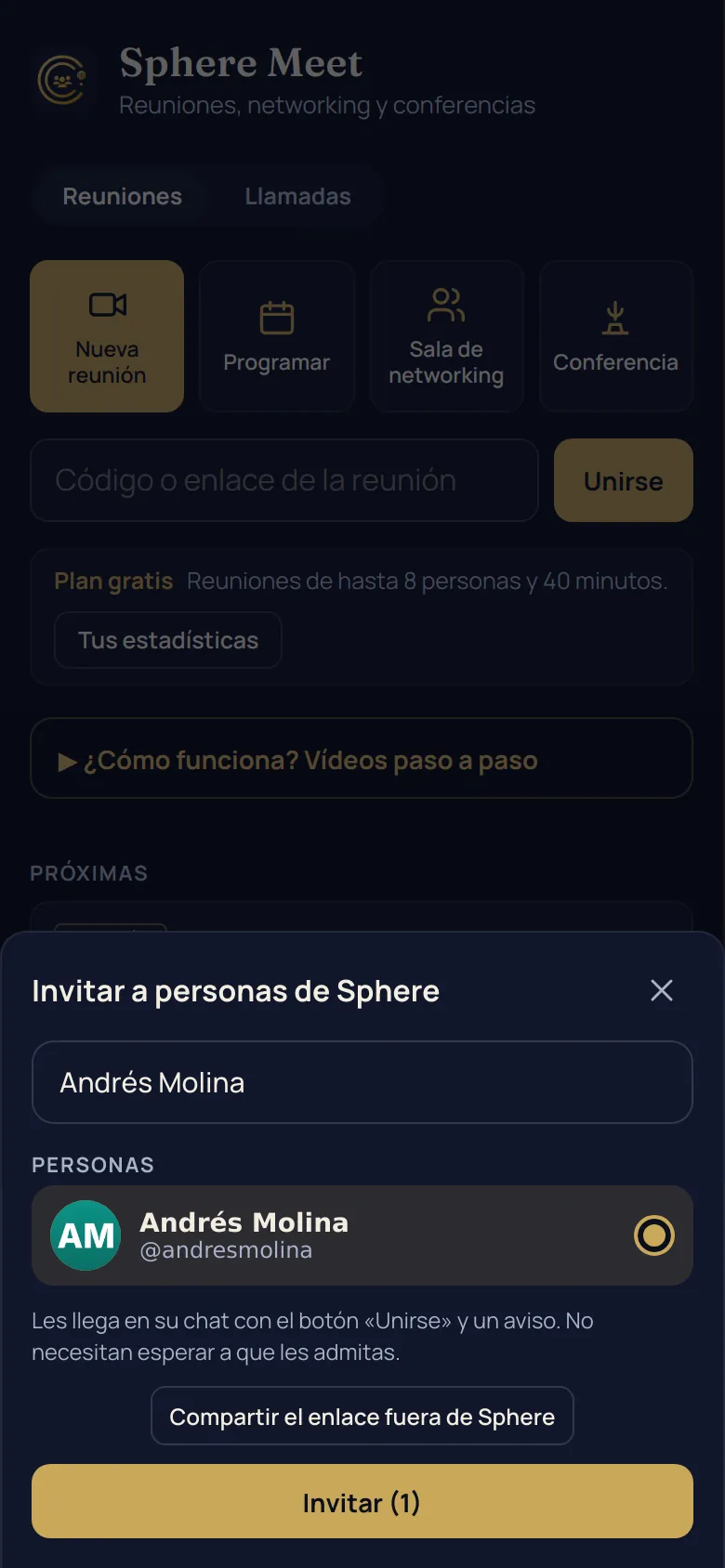
Invite within the app
- Open «⋯ More» › «Invite Sphere people».
- Choose contacts, recent chats, or a group you manage.
- They receive a card in their chat with «Join», and with «Accept» or «Can't make it» if scheduled; they enter without waiting.

Join with a code or link
- Paste the code or link in «Meeting code or link».
- Tap «Join».
- If the host has a waiting room, you'll see «Waiting for them to let you in…» and you'll enter once they admit you.
▶ Watch the video

Waiting room (for the host)
- When someone asks to join, «Name wants to join» appears at the top.
- Tap «Admit» or «Reject»; if there are multiple people, «Admit all».
- If you're not in the room, you'll get a notification and an alert in News.

Return to Messenger without leaving
- Tap «‹ Messenger» at the top left.
- The meeting continues in a floating window that you can move.
- Tap the window to return to the room.
▶ Watch the video

Networking and 1-on-1 Quick Round
- Enter a networking room or create your own.
- The host opens « ⋯ More » › « 1-on-1 Quick Round » and chooses 3, 5, or 8 minutes.
- At the end of each round, « Connect » or « Next »: the contact is saved only if both of you say yes.
▶ Watch the video
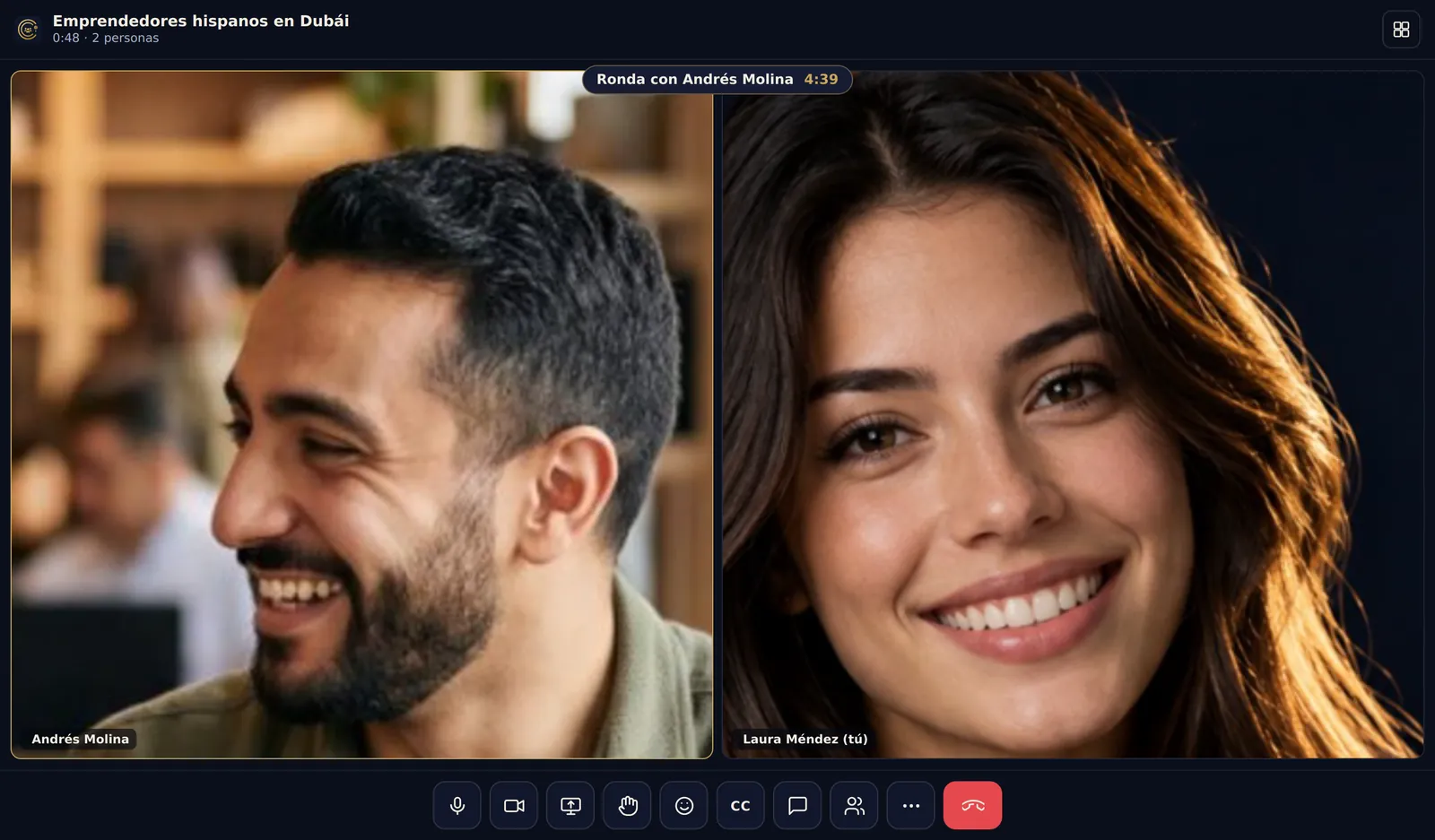

Translated Subtitles
- Press « CC ».
- You'll see what others are saying in your language, a few seconds after each sentence.
- 30 minutes free per month; unlimited on paid plans.
▶ Watch the video

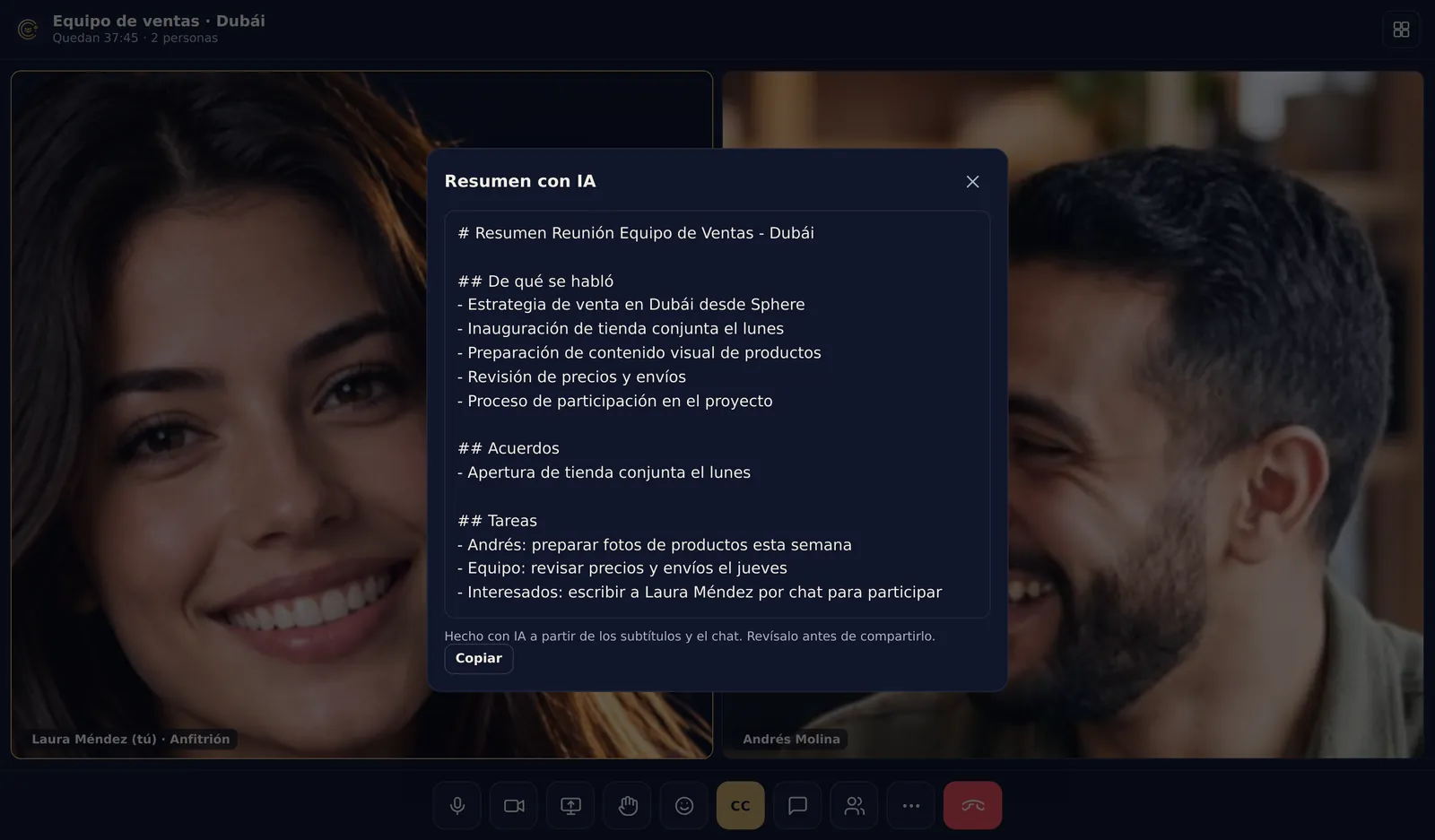
Surveys, Questions, and AI Summary
- The host creates surveys and everyone can ask and vote on questions from « ⋯ More ».
- When finished, the host generates the summary with agreements and tasks.
- All participants receive the notification with the summary.

Web Conferences
- Create a «Conference» (paid plans).
- Up to 6 speakers on stage and 500 audience members.
- The audience enters from the browser with their name and raises their hand to request the floor.
▶ Watch the video

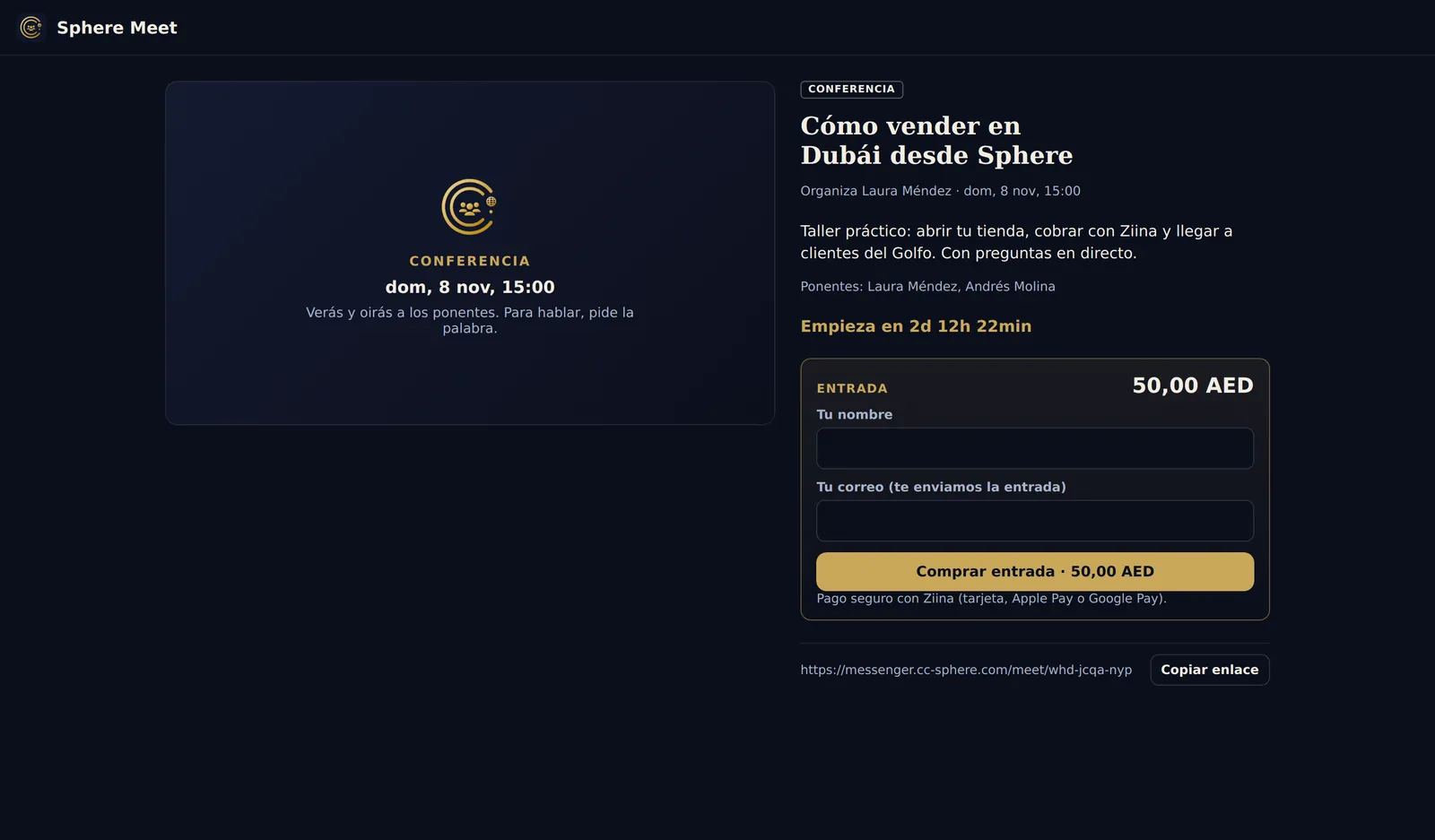
Events with ticketing and live sales
- Set a price for the conference and charge with Ziina; Sphere takes 10%.
- Set a product from your store and all audience members see it on screen.
- Due to Apple's policies, tickets are not sold in the iPhone app: they are purchased from the web.
▶ Watch the video

Record and stream on YouTube
- Open «⋯ More» › «Record the meeting» (paid plans); it also works from mobile.
- Open «⋯ More» › «Stream on YouTube», paste the streaming key from YouTube Studio and press «Start».
- The recording appears later in «How you did».
▶ Watch the video

End-to-end encryption and blur
- When creating the meeting you can enable encryption: only those with the link and its key can enter.
- Open «⋯ More» › «Blur background» (on computer and Android).
- Encrypted meetings cannot be recorded.

Calls or meeting: which one to use
Call
To talk with someone from your chats: voice or video, 1 to 1 or in a group. History is in «Meetings» › «Calls».
Sphere Meet meeting
To meet with several people, with link, waiting room, shared screen, subtitles, recording or audience.
How to make a call
- Open the chat of the person or group.
- Press the phone (voice) or camera (video) at the top right.
- To add more people during the call, tap «Add».
- If you leave a group call that is still in progress, rejoin it with «Join» in the chat or in «Meetings» › «Calls».

Plans and pricing
Basic is free. Sphere's paid plans expand Sphere Meet and the rest of Messenger.
| Feature | Free | Gold · Business · Elite |
|---|---|---|
| Meetings | Up to 8 people and 40 minutes | Up to 50 people, unlimited time |
| Networking rooms | Up to 50 people, unlimited time | Up to 50 people, unlimited time |
| Quick 1-to-1 rounds and small groups | Yes | Yes |
| Translated subtitles | 30 minutes per month | Unlimited |
| Conferences (6 speakers and 500 audience) | No | Yes |
| Record and stream on YouTube | No | Yes |
| Your branding in the room | No | Yes |
| Ticketed events | No | Yes (Sphere keeps 10%) |
| Price | Free | Gold 55 AED (≈ 15 USD) · Business 180 AED (≈ 49 USD) · Elite 550 AED (≈ 150 USD) per month |
Prices from the website. On iPhone and Android apps, plans are paid through the App Store or Google Play, which show your country's price.
Frequently Asked Questions
Is Sphere Meet free?
Yes: meetings up to 8 people and 40 minutes, networking rooms and 30 minutes of translated subtitles per month.
Do I need to install anything?
No to join: the meeting link opens in your browser. To create meetings and use everything, use the app or messenger.cc-sphere.com.
Are my meetings private?
Only those with the link or invitation can enter. You can also enable the waiting room, a password, or end-to-end encryption.
I can't hear or others can't hear me
Check the microphone permission in Settings › Sphere Messenger. On iPhone, if «Tap to unmute sound» appears, tap it, and use the «Speaker» button to change the output.
Can I share my screen from my mobile device?
For now, screen sharing only works from a computer.
Why do the subtitles take a few seconds?
Speech is recognized and translated on the server: each sentence appears about 2 or 3 seconds after you say it.
How do I buy a ticket from my iPhone?
Due to Apple's policies, paid tickets are not sold within the iPhone app. Buy it from the web and then enter the event from your iPhone.
How many people can attend?
Free plan: 8 per meeting; paid plan: 50. Networking rooms accommodate 50, and conferences have 6 speakers and 500 audience members.
Start your first meeting
Open Sphere Meet in the app or in your browser.

Available on the App Store and Google Play
Download it free on your iPhone or Android.


Scan with your phone camera